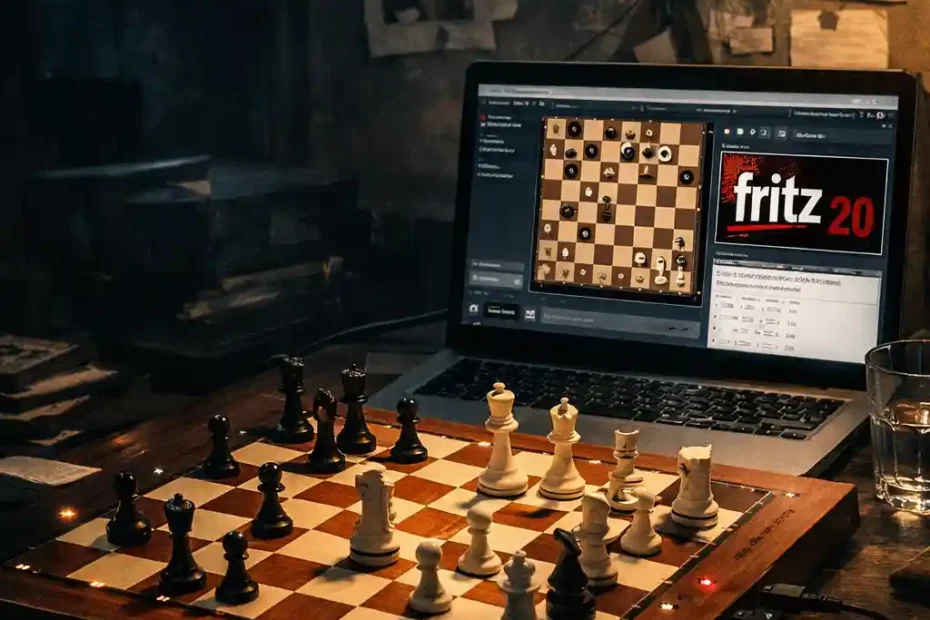

How to Use a DGT Board with Fritz 20 on Playchess.com
Introduction
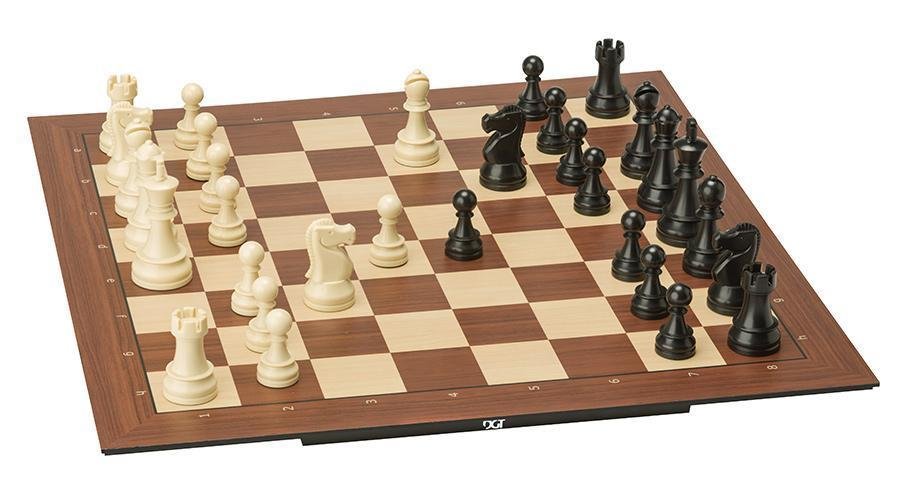
The integration of electronic chessboards into modern chess practice represents one of the most significant bridges between traditional over-the-board chess and contemporary digital play. Among these devices, DGT electronic boards occupy a privileged position due to their precision, robustness, and widespread adoption in professional tournaments, clubs, and private study environments. When combined with advanced chess software such as ChessBase Fritz 20 and connected to the Playchess.com server, the DGT board enables a seamless hybrid experience: physical piece movement synchronized in real time with online opponents and engines.
This guide provides a comprehensive, uncensored, and technically complete explanation of how to use a DGT board with Fritz 20 on Playchess. It is written in formal academic English, yet structured didactically so that both advanced amateurs and technically minded professionals can fully understand every layer of the process—from hardware requirements and driver installation to Fritz configuration, Playchess connection, troubleshooting, and best practices.
Unlike superficial tutorials, this document explains why each step is required, clarifies frequent misconceptions, and exposes limitations that are often omitted in commercial documentation. The objective is not merely functional success, but conceptual mastery of the interaction between hardware (DGT), software (Fritz 20), and networked chess services (Playchess).
1. Conceptual Overview: How the System Works
Before proceeding to practical steps, it is essential to understand the architecture involved.
A DGT board does not connect directly to Playchess. Instead, the data flow is as follows:
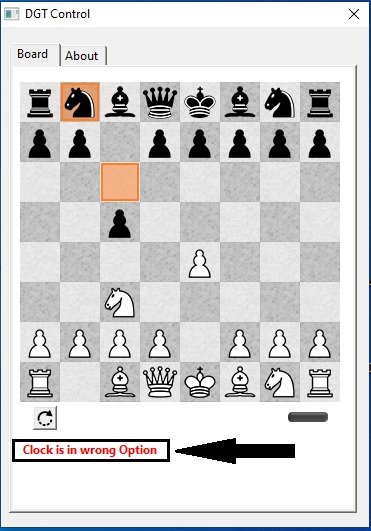
- Physical move is made on the DGT board.
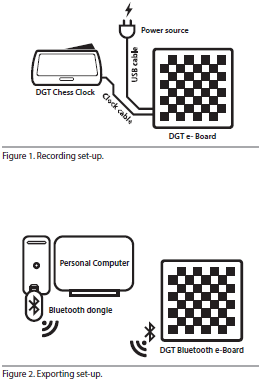
- The board’s sensors detect the change and transmit it via USB (or Bluetooth).
- DGT drivers / services interpret the signal at the operating-system level.
- Fritz 20 GUI receives the move through its DGT interface.
- Fritz sends the move to the Playchess server.
- Opponent’s move arrives from Playchess to Fritz.
- Fritz relays the move back to the DGT board (via LEDs and piece confirmation).
Thus, Fritz 20 acts as a mediating layer, not merely a chess engine interface but a protocol translator between physical hardware and an online chess server.
2. Hardware Requirements
2.1 Supported DGT Boards
The following DGT boards are fully compatible with Fritz 20:
- DGT Smart Board
- DGT Smart Board USB
- DGT Smart Board Bluetooth
- DGT Revelation II (with caveats, see Section 9)
- DGT Pegasus (limited integration)
Important: Non-electronic DGT wooden boards without sensors are not compatible.
2.2 Additional Hardware
- Windows 10 or Windows 11 (64-bit recommended)
- Stable USB port (avoid unpowered hubs)
- Internet connection with low latency
- Optional: DGT clock (3000, XL, or 2010)
3. Software Requirements
To ensure a stable setup, the following software components are mandatory:
- Fritz 20 (official ChessBase release)
- DGT Drivers for Windows
- ChessBase Playchess account (free or premium)
- Latest Windows updates
Note: macOS and Linux are not officially supported environments for Fritz 20. This guide assumes Windows.
4. Installing DGT Drivers
4.1 Downloading the Drivers
Obtain the latest drivers directly from the official DGT website. Avoid third-party mirrors, as outdated drivers are the primary cause of detection failures.
4.2 Installation Procedure
- Disconnect the DGT board from USB.
- Run the installer as Administrator.
- Accept the driver signature warning if prompted.
- Reboot the system.
- Connect the DGT board via USB.
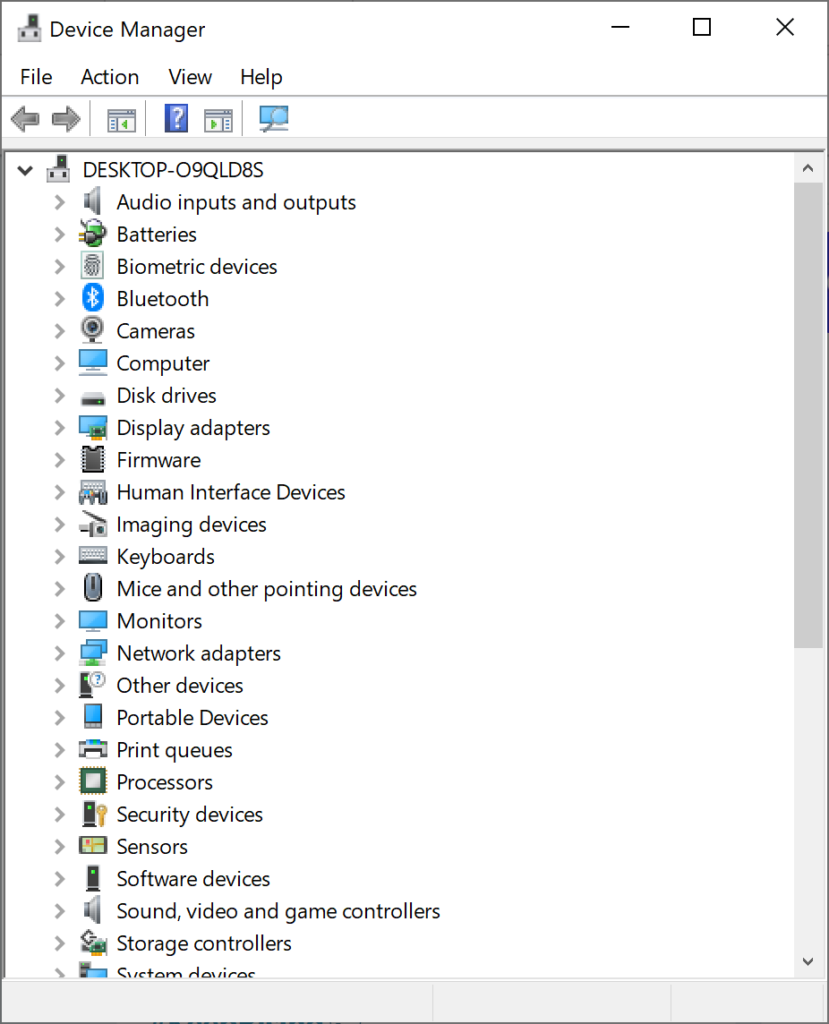
- Verify detection in Device Manager → Human Interface Devices.
A correctly installed board will appear as a DGT Electronic Board device.
5. Configuring Fritz 20 for DGT Boards
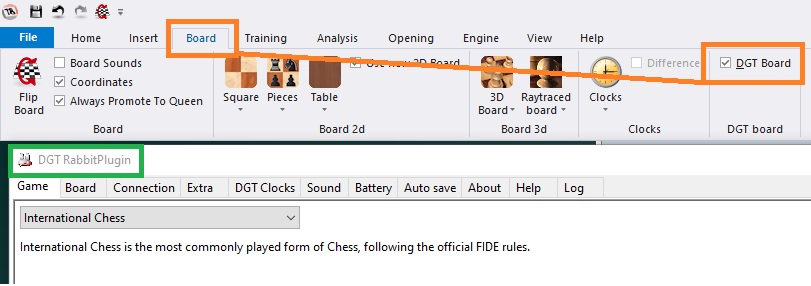
5.1 Enabling the DGT Interface
- Launch Fritz 20.
- Navigate to Tools → DGT Board → Configure.
- Select Use DGT Board.
- Choose the correct connection type (USB or Bluetooth).
- Confirm board detection.
Once enabled, Fritz enters external board mode, meaning that mouse input is secondary to physical moves.
5.2 Board Orientation and Calibration
- Ensure White is oriented correctly.
- Use Synchronize Board if pieces do not match the on-screen position.
- LEDs can be enabled for move confirmation and error detection.
6. Connecting Fritz 20 to Playchess.com


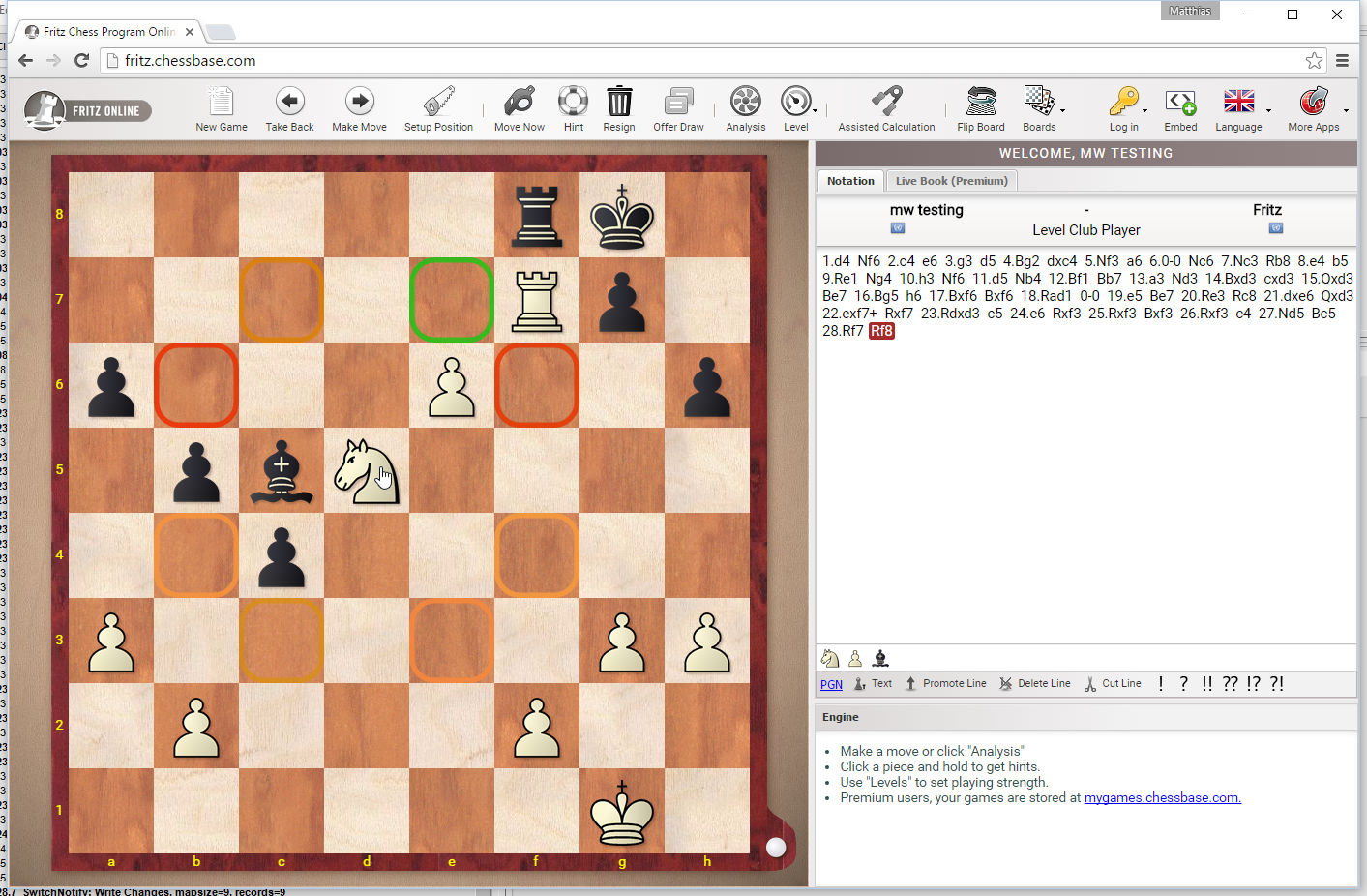
6.1 Logging In
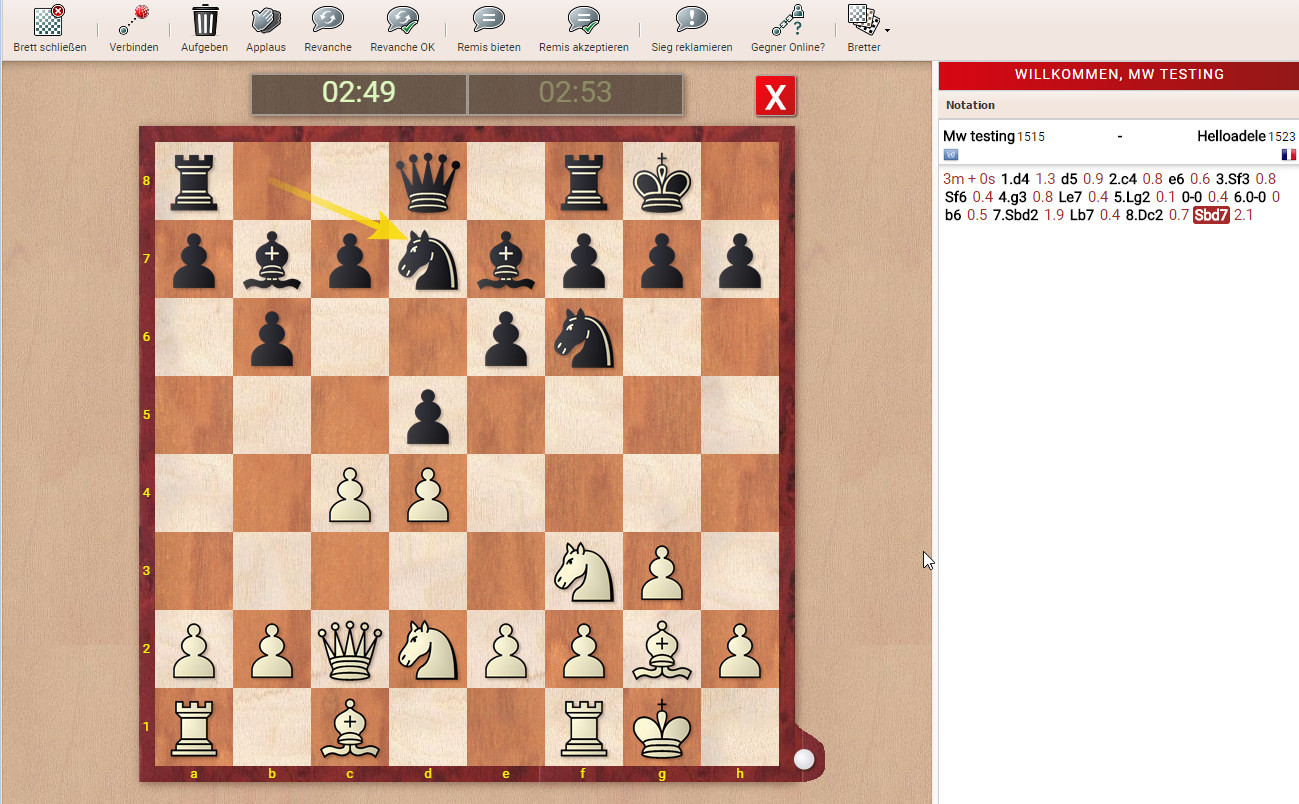
- In Fritz, click Online → Play Online.
- Enter your ChessBase account credentials.
- Select the appropriate server room (e.g., Blitz, Rapid, Engine Room).
6.2 Game Creation and Acceptance
- You may accept a challenge or create a new game.
- Time controls and rated/unrated status are configured as usual.
- Fritz automatically binds the game to the active DGT board.
At this point, do not move pieces yet until the server confirms game start.
7. Playing a Game Using the DGT Board
7.1 Making Moves
- Move the physical piece on the DGT board.
- Fritz validates legality.
- The move is sent instantly to Playchess.
- Illegal moves trigger LED warnings.
7.2 Receiving Opponent Moves
- Fritz receives the move from Playchess.
- LEDs highlight source and destination squares.
- You must replicate the move physically to maintain synchronization.
This two-step confirmation is intentional and prevents silent desynchronization.
8. Using a DGT Clock with Fritz and Playchess
If a DGT clock is connected:
- Time is synchronized from Playchess via Fritz.
- Clock buttons become active only after legal moves.
- Manual clock pressing is not required.
Critical note: Never press the clock manually unless Fritz explicitly instructs you to do so.
9. Known Limitations and Caveats (Uncensored)
This section addresses realities often omitted in official guides:
- Bluetooth instability
USB is strongly recommended for competitive play. - Revelation II restrictions
Internal engines may conflict with Fritz control logic. - Pegasus board limitations
Designed primarily for mobile apps, not full Fritz integration. - Latency perception
The board is real-time, but Playchess latency still applies. - Anti-cheating policies
Using a DGT board does not exempt you from Playchess fair-play rules.
10. Troubleshooting Common Problems
| Problem | Cause | Solution |
|---|---|---|
| Board not detected | Driver not loaded | Reinstall drivers |
| Moves ignored | External board mode disabled | Re-enable DGT in Fritz |
| Desync | Incorrect manual correction | Use Synchronize Board |
| LEDs inactive | Feature disabled | Enable LEDs in settings |
11. Best Practices for Competitive Play
- Always test the setup in an unrated game.
- Disable Windows USB power saving.
- Keep Fritz and drivers updated.
- Use wired internet connections.
- Avoid background applications during play.
Conclusion
The use of a DGT electronic chessboard with Fritz 20 on Playchess.com represents a mature and highly effective convergence of physical chess tradition and digital infrastructure. When correctly configured, the system offers an experience remarkably close to over-the-board play, while retaining all advantages of online competition: global opponents, precise time control, and seamless game recording.
This guide has demonstrated that success depends not on a single setting, but on understanding the entire interaction chain: hardware sensors, operating-system drivers, Fritz’s mediation role, and Playchess’s server logic. By mastering these layers, users can avoid frustration, diagnose problems independently, and exploit the full potential of professional-grade electronic chess equipment.
In an era where chess increasingly oscillates between physical and digital domains, the DGT–Fritz–Playchess ecosystem stands as a model of how technology can enhance, rather than replace, the classical experience of moving pieces on a board.

Jorge Ruiz Centelles
Filólogo y amante de la antropología social africana